Orbit: Difference between revisions
From Rise: The Vieneo Province
(Ticket 672: DOR page label, synchronized slow EXEC/phase blink; mark build and refreshed captures pending) |
(Ticket 672: document initial viable PASS search, manual countdown edits and COAST clearance; client build pending) |
||
| Line 114: | Line 114: | ||
[[File:Orbit-MFD-plane-20261015.png|thumb|center|600px|'''Scenario 4: a station in a different plane.''' PLANE DIF is about 38°. The cyan orbit and amber transfer leave the green orbital plane; the station does not need to be directly overhead.]] | [[File:Orbit-MFD-plane-20261015.png|thumb|center|600px|'''Scenario 4: a station in a different plane.''' PLANE DIF is about 38°. The cyan orbit and amber transfer leave the green orbital plane; the station does not need to be directly overhead.]] | ||
# Select the target on the navigation/target instrument, then choose RENDEZVOUS here. | # Select the target on the navigation/target instrument, then choose RENDEZVOUS here. | ||
# Set '''MEET''' to the desired future arrival time. Each adjustment changes the requested interval by five minutes and establishes a new countdown. | # Set '''MEET''' to the desired future arrival time. Each adjustment changes the requested interval by five minutes and establishes a new countdown. In the pending PASS-time revision described below, this adjustment uses the remaining time currently shown, with limits of 30 seconds to six hours. | ||
# Compare START NOW, AUTO or AT TIME. If no clear transfer is found, change the arrival or departure time. | # Compare START NOW, AUTO or AT TIME. If no clear transfer is found, change the arrival or departure time. | ||
# Use PLANE 3D or EDGE-ON to inspect the plane change, and ORBIT to inspect the transfer shape. Review both burns and the fuel estimate. | # Use PLANE 3D or EDGE-ON to inspect the plane change, and ORBIT to inspect the transfer shape. Review both burns and the fuel estimate. | ||
| Line 150: | Line 150: | ||
# Select '''EXIT COAST''' to continue on the transfer orbit after the crossing, or '''EXIT CIRCULARIZE''' to establish a circular orbit after passing the waypoint. | # Select '''EXIT COAST''' to continue on the transfer orbit after the crossing, or '''EXIT CIRCULARIZE''' to establish a circular orbit after passing the waypoint. | ||
# Set START, inspect the ground track and orbit views, and review the burn estimates before using DOR. | # Set START, inspect the ground track and orbit views, and review the burn estimates before using DOR. | ||
'''Initial PASS-time revision (pending client build):''' On entering OVERFLY, the updated module searches for an early viable PASS time using the selected ALT, EXIT and START settings. It checks the route and continuing orbit against Vieneo's surface, the existing atmospheric-pass advisory, available fuel and the preview's burn-duration limits. It searches up to six hours ahead in 30-second intervals, refines the first viable interval to one second, and adds up to 30 seconds of headroom when that later candidate also passes the checks. This is a useful starting estimate, not a guaranteed global minimum or a guarantee of flight performance. Very narrow windows can be missed. It does not minimize fuel. | |||
While searching, '''FINDING PASS TIME''' replaces the plan and DOR cannot engage it. '''NO VIABLE PASS IN 6H''' means no candidate met these criteria in the bounded search; it does not prove that no possible route exists. Change ALT, EXIT or START, or choose a manual PASS time to inspect other estimates. Weather at the selected point is not an input to the transfer solver. | |||
The initial countdown stays fixed once selected. Until you edit PASS directly, changes to ALT, EXIT or START/IN request a new suggestion. After a direct PASS edit, your chosen deadline is retained, including an invalid or warning-producing one; the planner does not silently move it back into a valid window. Decrease or increase the displayed remaining time in five-minute steps (30 seconds to six hours). To request another automatic starting estimate, leave OVERFLY and select it again. VIEW changes do not restart the search. Automatic suggestions never change an executing DOR plan; manually changing planning values still cancels execution. | |||
''The full x64 Release client build, in-game verification and refreshed scenario captures for this revision are deferred while the current flight continues. The older illustration above demonstrates the layout, not automatic PASS initialization.'' | |||
'''Why a low pass may have no clear transfer:''' EXIT COAST requires the full continuing orbit to remain bound and clear of Vieneo. Reaching 200 km above the point is not enough if the unpowered path then descends into the surface. EXIT CIRCULARIZE adds an arrival burn to establish a circular orbit; changing PASS may also produce a different viable route. Manual previews can retain atmospheric or long-burn warnings, even though the automatic starting estimate excludes them. | |||
Overfly meets a moving ground location at a chosen time; it does not hover above it. A circularization burn belongs after the crossing and can change where the spacecraft travels afterward. The pass altitude is not clearance above local terrain. | Overfly meets a moving ground location at a chosen time; it does not hover above it. A circularization burn belongs after the crossing and can change where the spacecraft travels afterward. The pass altitude is not clearance above local terrain. | ||
Revision as of 14:19, 16 October 2026
The Orbit MFD shows your current trajectory, the selected target's trajectory, and a proposed maneuver around Vieneo. Use it to change your orbit, rendezvous with a station or another spacecraft, or pass over a selected surface point. DOR executes the selected valid orbital plan; circularizing is one possible plan.
This guide covers the new full-page instrument introduced by ticket 672. Older clients may still show the small numerical Orbit readout. The new page is installed in the E-10, E-11, P-13, W-6, T-19 and EVA displays. It is not installed in the A-4.
About the illustrations: These are labeled scenario renders from the implemented instrument's layout, orbital planner and guidance code, using synthetic example conditions. They are not screenshots of live flights. Each uses the native 420 × 320 layout enlarged for reading. Example times, fuel and delta-V are not a performance promise for your vehicle.
Current limits: Orbital adjustment, rendezvous and overflight have executable plans. A powered launch profile and an atmospheric return/landing profile are not implemented. The ground and return examples below show these limits explicitly.
Open and operate the page
Display-label revision: The latest source revision identifies the page as DOR at the upper left. While executing, EXEC at the upper right and the active phase (WAIT, BURN, COAST or ARRIVAL) blink together: one second visible, one second hidden. The DOR page identifier, numerical readouts and appended atmospheric warnings stay steady. ESTIMATE, NO PLAN and completion/fault indications do not use this execution blink.
Build verification and refreshed captures for this label revision are pending. The scenario illustrations below still show the earlier ORB1 and DOR-prefixed labels; they do not demonstrate the new blink.
Select the Orbit page on a supported vehicle's MFD. Choose the station, spacecraft or surface waypoint on your usual target-selection instrument; Orbit reads that selection. You do not enter a second waypoint on this page.
| Control | Action |
|---|---|
| Shift + Up / Down | Select a row in the side controls. The highlighted row's actions appear along the bottom. |
| Shift + Left / Right | Change the highlighted option or decrease/increase its value. |
| Shift + C, with the eccentricity row selected | Request a circular orbit (e = 0). |
| Your configured DOR on/off control | Engage or disengage execution of the selected valid plan. |
The controls require cockpit power and do not take these keys while text entry is active. Changing VIEW does not alter the plan or interrupt DOR. Changing a planning value does interrupt execution: review the new solution before engaging DOR again.
Selecting Orbit does not replace or acknowledge EICAS indications. With EICAS powered and serviceable, its gear, engine, trim and crew-alert indications remain independent of the MFD page. If these disappear only while ORB1 is selected, that is a rendering fault, not evidence that the underlying condition has cleared.
Select an objective
| MODE | Use |
|---|---|
| RENDEZVOUS | An orbiting station or free-flying vessel is selected. Reach a future point on its trajectory and match its velocity there. |
| OVERFLY | A surface waypoint or grounded vessel is selected. Pass above that rotating ground point at the requested altitude and time. |
| REENTRY | A surface target is selected. This currently displays the situation and ENTRY PROFILE REQUIRED; it does not calculate or execute atmospheric entry or landing. |
| ADJUST ORBIT | Change your own orbit independently of the selected target. Available through MODE even when a target is selected. |
A newly selected surface target defaults to REENTRY. Use MODE to choose OVERFLY when you want an orbital pass instead. An explicitly selected ADJUST ORBIT objective remains independent of the target. The surface-mode cycle is REENTRY, OVERFLY, ADJUST ORBIT.
With no target, select ADJUST ORBIT or select a navigation target elsewhere. A docked or contained target is not treated as an independent free-flying spacecraft. An undocked spacecraft inside a station's reference bubble remains a valid target. An atmospheric-flight target may still have a predicted trajectory, but it is marked with an atmospheric warning.
Rendezvous is more than matching orbital size and shape. Two spacecraft can have identical orbital parameters and remain far apart. Rendezvous also solves for position and velocity at the same future time, including the difference between their orbital planes.
Read the picture and numbers
The graphic area stays the same size in every mode. Green is your current trajectory; cyan is the target; amber dashed lines show the proposed transfer. Dim amber shows the destination orbit, and gray dashed lines show a planned coast before departure. AP and PE mark apoapsis and periapsis. Numbered amber markers identify burns; T identifies the target's current position.
| VIEW | What it helps you see |
|---|---|
| ORBIT | Your orbital plane viewed face-on: shape, apsides and transfer path. |
| PLANE 3D | Plane orientation, with Vieneo's equator and north axis as references. The NODE line indicates the intersection of the current and target orbital planes. |
| EDGE-ON | Your orbital plane viewed from its edge. Useful for seeing how far the target or transfer leaves that plane; it compresses the shape of your own orbit into a line. |
| TRACK | Latitude/longitude ground tracks, including Vieneo's rotation. Useful for a surface overflight. This is a schematic grid, not terrain imagery. |
| Readout | Meaning |
|---|---|
| AP / PE | Highest / lowest altitude of the orbit above the spherical Vieneo reference surface, in km. A negative PE means the unpowered trajectory intersects that surface. |
| e | Eccentricity: 0 is circular; larger values produce a more elongated ellipse. |
| SIZE … km a | Semi-major axis, measured from Vieneo's center. It is not altitude. The reference radius is 2939.6 km. |
| i / PLANE DIF | Inclination to Vieneo's equator, or the angle between your plane and the target's plane, in degrees. |
| TP / nu | Orbital period in seconds / true anomaly in degrees, locating you around the current orbit relative to periapsis. |
| CURRENT > PLAN | Current values followed by the proposed final values. CURRENT > REQUEST is an editable goal for which no valid plan exists yet. |
| B1 / B2 | Burn countdown, planned delta-V in m/s, estimated duration in seconds and fuel in kg. |
| TOTAL / FUEL | Total planned delta-V and estimated fuel. Duration and fuel assume the available full-thrust performance. |
| TO GO / USED | During DOR execution: the active guidance correction remaining, in m/s, and fuel consumed since engagement, in kg. |
Ground and ascent
-
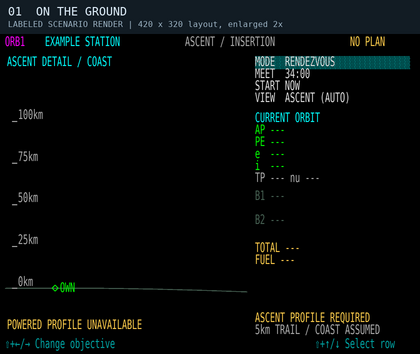
Scenario 1: on the ground. A station is selected, but there is no solved powered launch profile. Current orbital elements are unavailable.
-
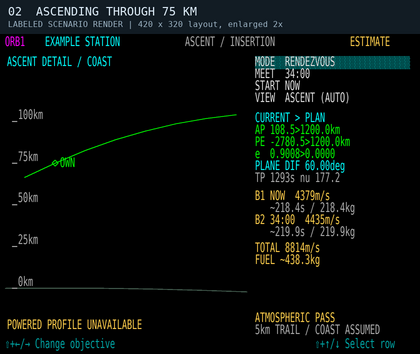
Scenario 2: ascending through 75 km. The green curve is a measured-state ballistic coast. An in-flight vacuum transfer estimate can appear, with an atmospheric warning; this is not a powered ascent profile.


On the ground, or while rising below 100 km, the graphic automatically becomes ASCENT DETAIL / COAST. It shows the local curved surface and altitude scale. The header says ASCENT / INSERTION, while MODE still describes your chosen objective, such as RENDEZVOUS.
ASCENT PROFILE REQUIRED on the ground means DOR cannot launch you using this planner. There is no optimized launch-window display or continuous heading/pitch schedule for takeoff. Fly the ascent using the vehicle's normal controls. Once airborne, any available transfer estimate starts from your measured position and velocity; it does not include aerodynamic lift or drag in the predicted path.
At 100 km while climbing, the graphic returns to the selected orbital view. This does not certify that you are in orbit: a trajectory whose periapsis intersects Vieneo remains ORBIT INSERTION or SUBORBITAL / ENTRY. A descending vehicle below 100 km is not automatically shown as ascending.
There is no hard atmospheric boundary at 75 or 100 km. The planner's warning estimate uses the client's density model and air-relative speed. The 100 km change is a display rule, not a guarantee that atmospheric forces are negligible.
Change or circularize your orbit

- Select MODE → ADJUST ORBIT.
- Choose LOCK NONE, LOCK AP or LOCK PE. Locking an apsis preserves its selected radius while you change eccentricity. It does not mean “wait to burn at that apsis.”
- Change e. With LOCK NONE, also change SIZE. Shift+C on the e row requests a circle; without an apsis lock it uses the planned first-burn radius when available, otherwise your current radius.
- Choose the departure rule under START. Compare the green current orbit with the amber requested orbit, AP/PE, burn count, fuel and warnings.
- Engage DOR when satisfied with a valid plan, or use the plan as a reference for manual flying.
START NOW asks for a solution from your current position; you do not have to wait for apoapsis or periapsis. START AUTO compares a limited set of candidate departure times, including apsides for orbital adjustment, and chooses the lowest delta-V among valid candidates. It is not a search of every possible launch window. START AT TIME exposes an IN countdown that you can adjust.
If the requested orbit does not pass through the departure point, the planner may propose a transfer and a second burn to establish the new shape. A request that intersects the surface is rejected. SIZE changes in 100 km steps; e changes in 0.01 steps.
Rendezvous with a station or spacecraft

- Select the target on the navigation/target instrument, then choose RENDEZVOUS here.
- Set MEET to the desired future arrival time. Each adjustment changes the requested interval by five minutes and establishes a new countdown. In the pending PASS-time revision described below, this adjustment uses the remaining time currently shown, with limits of 30 seconds to six hours.
- Compare START NOW, AUTO or AT TIME. If no clear transfer is found, change the arrival or departure time.
- Use PLANE 3D or EDGE-ON to inspect the plane change, and ORBIT to inspect the transfer shape. Review both burns and the fuel estimate.
- Engage DOR to execute the selected solution. Continue monitoring the target and warnings.
The planned meeting point is approximately 5 km behind the target along its trajectory. It is a rendezvous staging point, not a docking port or a command to fly into the station's center. Stations follow their modeled motion. Another spacecraft is predicted to coast; if it maneuvers, the original prediction is no longer reliable.
After rendezvous, use the normal close-approach and docking procedures. The Orbit page does not obtain docking clearance or perform docking. TVM remains a separate target-relative velocity control.
Planning inside a station bubble

A station's nearby reference bubble is a coordinate frame used for smooth motion. Entering it does not mean the ship is docked. You can plan and execute orbital maneuvers while undocked inside it, and select another undocked spacecraft in a station bubble as a rendezvous target. Entering or leaving the bubble alone does not cancel DOR. Actual docking still blocks planning and cancels execution.
Orbit reconstructs a ship's state from the station's modeled instantaneous motion plus the ship's measured relative motion. This avoids the jumping orbital elements caused by subtracting two rounded station positions to estimate velocity. It applies regardless of whether the selected target is a station, a spacecraft or a ground point; no display smoothing delays the values.
Follow DOR through the burns
DOR now follows the selected orbital plan. It supplies pitch and heading targets to the existing flight director and commands translation thrust. Roll remains the pilot's preference; there is no separate roll command on Orbit.
-
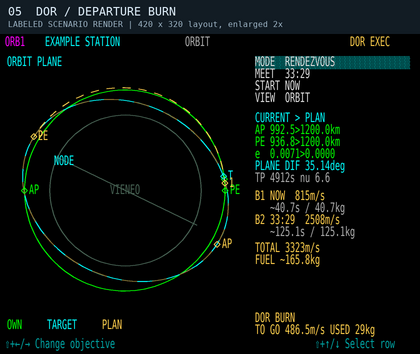
Scenario 5: departure, 30 seconds after engagement. DOR BURN; TO GO is about 487 m/s. The B1/B2 rows retain the planned burn budgets.
-
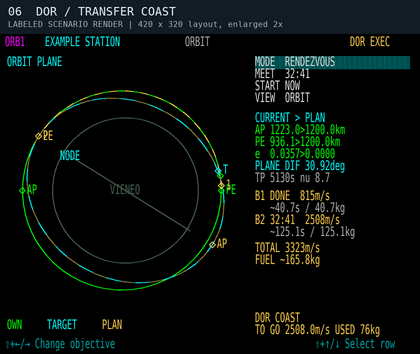
Scenario 6: the same transfer coasting. B1 is DONE. DOR COAST applies no thrust and prepares guidance for the next burn; TO GO now refers to that next correction.
-
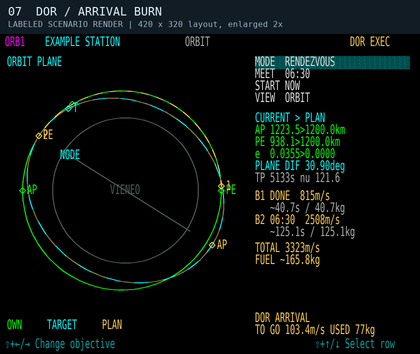
Scenario 7: arrival correction. DOR ARRIVAL has begun before the planned meeting time. Live TO GO differs from the original B2 estimate as guidance corrects the actual trajectory.


For a delayed departure, DOR WAIT provides pre-alignment guidance without thrust. After the first burn, DOR COAST also suppresses thrust while retaining the next burn's attitude guidance. During active burns, remaining delta-V is recalculated from the actual state; it need not decrease smoothly or equal the original burn budget. Completion requires the controller to settle near its goal, so finite burns can finish later than the initial estimate.
Use DOR off to take over. Manual thrust-increase/decrease key commands also disengage it. Changing planning values, losing/changing a rendezvous target, losing cockpit power, docking/landing, or changing/resetting the vehicle's flight state cancels execution. After a cancellation, inspect the reason and solve again before re-engaging. VIEW changes alone are safe to make during execution.
Pass over a ground point

- Select a surface waypoint, then choose OVERFLY.
- Set ALT above the spherical reference surface, in 100 km steps, and PASS time, in five-minute steps.
- Select EXIT COAST to continue on the transfer orbit after the crossing, or EXIT CIRCULARIZE to establish a circular orbit after passing the waypoint.
- Set START, inspect the ground track and orbit views, and review the burn estimates before using DOR.
Initial PASS-time revision (pending client build): On entering OVERFLY, the updated module searches for an early viable PASS time using the selected ALT, EXIT and START settings. It checks the route and continuing orbit against Vieneo's surface, the existing atmospheric-pass advisory, available fuel and the preview's burn-duration limits. It searches up to six hours ahead in 30-second intervals, refines the first viable interval to one second, and adds up to 30 seconds of headroom when that later candidate also passes the checks. This is a useful starting estimate, not a guaranteed global minimum or a guarantee of flight performance. Very narrow windows can be missed. It does not minimize fuel.
While searching, FINDING PASS TIME replaces the plan and DOR cannot engage it. NO VIABLE PASS IN 6H means no candidate met these criteria in the bounded search; it does not prove that no possible route exists. Change ALT, EXIT or START, or choose a manual PASS time to inspect other estimates. Weather at the selected point is not an input to the transfer solver.
The initial countdown stays fixed once selected. Until you edit PASS directly, changes to ALT, EXIT or START/IN request a new suggestion. After a direct PASS edit, your chosen deadline is retained, including an invalid or warning-producing one; the planner does not silently move it back into a valid window. Decrease or increase the displayed remaining time in five-minute steps (30 seconds to six hours). To request another automatic starting estimate, leave OVERFLY and select it again. VIEW changes do not restart the search. Automatic suggestions never change an executing DOR plan; manually changing planning values still cancels execution.
The full x64 Release client build, in-game verification and refreshed scenario captures for this revision are deferred while the current flight continues. The older illustration above demonstrates the layout, not automatic PASS initialization.
Why a low pass may have no clear transfer: EXIT COAST requires the full continuing orbit to remain bound and clear of Vieneo. Reaching 200 km above the point is not enough if the unpowered path then descends into the surface. EXIT CIRCULARIZE adds an arrival burn to establish a circular orbit; changing PASS may also produce a different viable route. Manual previews can retain atmospheric or long-burn warnings, even though the automatic starting estimate excludes them.
Overfly meets a moving ground location at a chosen time; it does not hover above it. A circularization burn belongs after the crossing and can change where the spacecraft travels afterward. The pass altitude is not clearance above local terrain.
Reentry and atmospheric entry
-
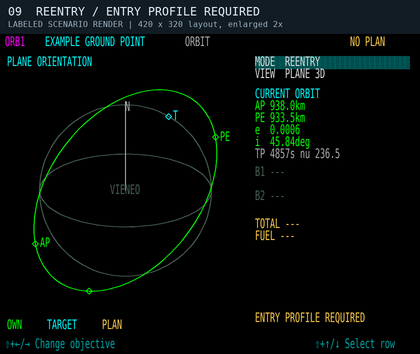
Scenario 9: a surface target defaults to REENTRY. REENTRY shows the surface target and current orbit, but ENTRY PROFILE REQUIRED means no executable entry solution exists.
-
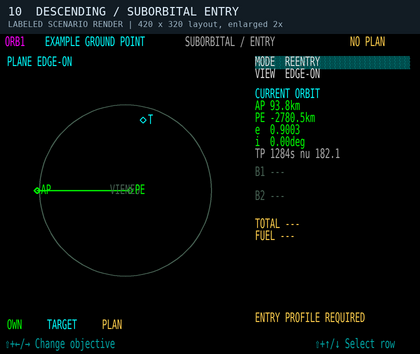
Scenario 10: descending through 75 km. SUBORBITAL / ENTRY correctly describes a surface-intersecting trajectory. This is a situation display, not an automatic landing profile.


Select the intended surface waypoint and choose REENTRY to see the destination in context. Do not expect DOR to deorbit, manage atmospheric entry or land from this mode. No burn duration or fuel solution is supplied until an entry profile exists. Use the vehicle's separate return and landing procedures.
ADJUST ORBIT is not a substitute for an entry planner: a requested final orbit that intersects the spherical surface is rejected. The displayed coast also omits atmospheric drag, terrain and heating, so it cannot establish a landing footprint or a safe entry corridor.
| Message | Meaning / next action |
|---|---|
| VACUUM ESTIMATE | An orbital estimate is available. It assumes two-body coasting between instantaneous planned burns. |
| LONG BURN - ESTIMATE / FINITE BURN NOT CORRECTED | The preview's instantaneous-burn approximation is weak for the estimated duration. Live DOR corrects from actual state, but the original time, path and fuel are estimates. |
| ATMOSPHERIC PASS / ATMOSPHERIC TARGET | Atmospheric effects may invalidate the coast prediction. A target in atmospheric flight is also flagged. Review the trajectory and use appropriate flight control; a warning is not proof of a safe route. |
| SURFACE INTERSECTION / NO CLEAR TRANSFER | The requested shape intersects Vieneo, or no acceptable transfer was found. Raise the requested periapsis or change the timing/objective. |
| INSUFFICIENT FUEL / PERFORMANCE UNAVAILABLE | Fuel or propulsion data do not support execution. A geometric estimate alone is not an executable DOR plan. |
| BURN TIME PASSED / ARRIVAL TIME PASSED | The selected deadline has passed. Edit the time to request a new one; these are real countdowns, not indefinitely rolling delays. |
| SELECT NAV TARGET / NO TARGET TRAJECTORY | Select a usable target, or choose ADJUST ORBIT. |
| UNDOCK TO PLAN / POWER OFF | Restore the required flight or cockpit-power state before planning/execution. |
| ASCENT PROFILE REQUIRED / ENTRY PROFILE REQUIRED | Powered launch / atmospheric return guidance is unavailable in this version. |